1. How to obtain a list of learners with valid certifications?
To identify which learners currently hold valid SAP certificates, you have two primary options:
1.) Leverage the predefined valid certifications export file. This option will give you the information the fastest. To do so:- Navigate to the Learning Achievements tab.
- Proceed to the Explore and Export Data section by pressing the respective button on the top right.
- In the preselected Certifications view, press the Export Valid Certificates button.

- Certification Exam Result = “Passed”
- Certifications Status = “Active”
- S-user Status !=“Deleted”
- Test Type = “Base”, “Exam”, “Transition”
- Activity Date = all.
2.) Define a custom view of the Explore and Export Data section. This option gives you the most customization. To do so:
- Follow the above steps to navigate to the Certifications view.
- By default, the Certifications view is restricted to certification activities for the current year. If you need all valid certificates, ensure the full time scope is included by setting the Activity Date Range filter from date to “Start”.
Note:
SAP certified individuals’ data is anonymized after 10 years, per SAP data privacy policy as of June 2024.
3. Adjust the table by adding or removing dimensions/measures, pressing the Configure Table button that opens the Quick Builder.
4. Use the Certified Learners metric to obtain the number of currently certified learners or select the Valid Certificates metric if you need the total number of certificates.
For more information, see Glossary: Certification measures
5. You may also apply additional filters, like Country/Region to have a more focused overview.
6.After you’ve set up the desired tabular view, you may analyze the data online, download it in your custom format by pressing the Export Current View button or save it as a bookmark.
For more information, see How to customize your Data Table?
Tips:
- You can remove unnecessary dimensions (such as Test Type or Certification Exam Result) from your view to streamline the dataset.
- If you observe multiple entries for a single learner in your certification data, please refer to the comprehensive explanation under the duplication issue. [link to next question]
2. Why do I see duplicated entries for each learner in the certification data?
Multiple records for the same learner or certificate may be displayed depending on the selected dimensions, filters and reporting granularity. This is expected when the records differ in one or more reporting attributes included in the table. Common scenarios include:
- A certificate is associated with a Learner Universal ID. If multiple S-user or P-user IDs are linked to the same Universal ID, separate records may be displayed for the associated user IDs.
- Variations in learner attributes, such as different name spelling, may result in separate records being displayed or exported.
How to work with duplicate records
- Use the Export Valid Certificates option, which provides a certificate-focused export and minimizes duplication by excluding most fields that can lead to multiple records.
- Use Learner Universal ID to identify records belonging to the same individual across multiple S-user or P-user IDs.
- If a certificate-level view is required, deduplicate the exported file using the Certificate ID column as the unique identifier.
3. How to identify certified individuals by Country / Region or Solution Area?
You can analyze certification data by both Country/Region and SAP Solution Area.
- There are several charts on the Learning Achievements page that show the breakdown by Country/Region and SAP Solution Area.

- Additionally, you can use the dedicated page filters to select specific Countries / Regions and/or SAP Solution Areas to view the dashboard data accordingly. Please note that filtering directly on individual charts is not supported for these dimensions; all filtering should be done through the main page filter.
- For further analysis, in the Explore and Export Data sections, you can use the Certified Learners metric. You can drill down by SAP Region, Customer Country/Region (organization location) or SAP Universal ID Country/Region (the user’s actual physical location) dimensions to further refine your analytics to the desired geographic scope.
4. How identify certificates relevant to the Partner Competency framework?
To identify the individuals who hold certificates relevant to the Partner Competency framework:
- Set the Activity Date Range filter to cover the full time scope.
- Add a filter for Competency Relevant and set its value to “True”.

Note:
Only certificates relevant to the Partner Competency Framework are counted in the SAP Global SI Ranking.
5. Why does certification data differ from the data displayed in SAP for Me?
Differences may arise due to partner grouping/ERP ID distinctions and different reporting time frames:
- SAP for Me:
Displays all certified learners who are part of the partner entity. It displays “Anonymous” for those in the broader PGI. - SAP Learning Hub analytics dashboard: By default, shows only those certified learners who hold a valid SAP Learning Hub license.
6. How can I see certification data for all learners in my company?
If you would like to view certification data for every learner associated with your company account:
- Create a case Raise a support ticket confirming your eligibility to view all company learners’ certification data.
- Recommended wording:
“I confirm that all our users with access to the SAP Learning Hub analytics dashboard are entitled to view certification data of all users associated with entities listed in our partner grouping agreement.”
7. Why some certification records do not include a name or email?
Why some certification records do not include a name or email? If an SAP S-user has been deactivated (either manually or via the S-user retirement process), their personal data, including name and email, is deleted and will not appear in certification reports.
8. How to identify learners who need to complete UID setup
- Use the predefined export in the Certifications view of the Explore and Export Data section. The export includes Universal ID related fields such as Learner Universal ID, Compliant UID, and Compliant UID Issues, allowing you to better understand the reason for UID non-compliance.
- Alternatively, in the same view set the Activity Date Range from “Start to December 2026”. Make sure that the Learners measure is selected and apply filter Compliant UID = “No”.
Refer to the Glossary for a list of possible values of the Compliant UID Issues.
9. How to identify learners who need to take a delta assessment to stay certified
To retrieve the list of learners who have not taken the required delta assessment needed for remaining certified and are at risk of expiry, use the Certifications view in the Explore and Export Data section.
- Keep the default filter criteria for learners with valid certificates:
- Certification Exam Result = “Passed”
- Certifications Status = “Active”
- S-user Status !=“Deleted”
- Test Type = “Base”, “Exam”
Tip:
Make sure that the full time scope is included by setting the Activity Date Range filter from date to “Start”, as shown below:

2. Add an additional filter for the Due Date Bucket dimension by choosing Filter by Member:

Select the desired Due Date Buckets according to your reporting needs and then press “OK”. If you would like to see the certificates that will expire within next month, you would need to apply the selection as shown below:

3. In the result list you can see all learners whose certificates will expire within the defined Due Date criteria. You are also able to see the exact Expiration Date, as shown below. You can use the provided buttons Configure Table to adjust the table format and Export Current View to download the list into a flat file.

By passing the required delta assessment, these learners can keep their certification active. To make sure that they have an assigned SAP Learning Hub license, you can use the Latest License Status field. Consider also the Latest License End date.

To understand the Recertification Needed values refer to the Glossary - section Certification dimensions
10. How to get a list of learners who need to recertify
To identify all learners who must complete full recertification due to exam or framework changes:
- Use the Certifications view in the Explore and Export Data section.
- Filter on Recertification needed = “Yes” or “Yes, manual check needed”.
- The Recommended Certification Alternative field provides further guidance on the required certification for recertification, and you may also consult the SAP Certification practical exams Step-by-step guide to identify an alternative learning plan.
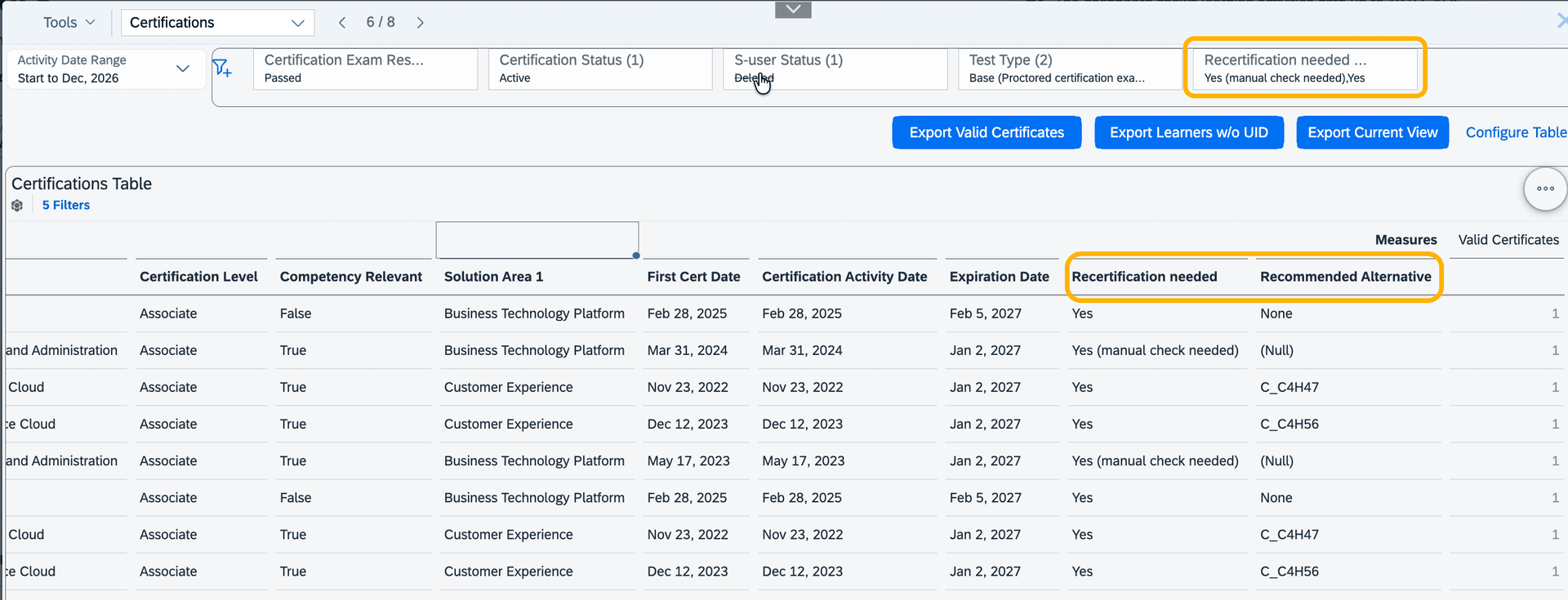
To understand the Recertification Needed values refer to the Glossary: Certification dimensions
11. How to prevent the loss of certificates due to deleted SAP S-user IDs
To help prevent certificate loss, the SAP Learning Hub analytics dashboard includes an SAP S-user Status dimension. This allows administrators to monitor the lifecycle of each S-user.
- Proactive Monitoring:
Regularly use the S-user Status filter to identify users marked as “Expired.” Proactively contact the super admins to ensure their accounts are updated or extended before deletion occurs, thereby avoiding potential certificate loss. - Reference Resources:
For detailed guidance on S-user lifecycles and management, consult the relevant SAP documentation S-user lifetime. - Important Considerations:
- If a super admin manually deactivates an S-user, that S-user account is permanently deleted and cannot be recovered.
- Certificates from deleted S-users will no longer appear in the list of valid certificates in the Analytics dashboard. However, related certification activities (such as exam attempts) will still be visible in the Certifications view of the Explore and Export Data section.
- Re-linking Certificates:
If an employee’s S-user ID is deleted but they are still employed by the company, their valid certificates will appear again once a new active S-user account for the organization is linked to their SAP Universal ID (UID).
12. How to report expired certificates
There are multiple ways to report expired certificates:
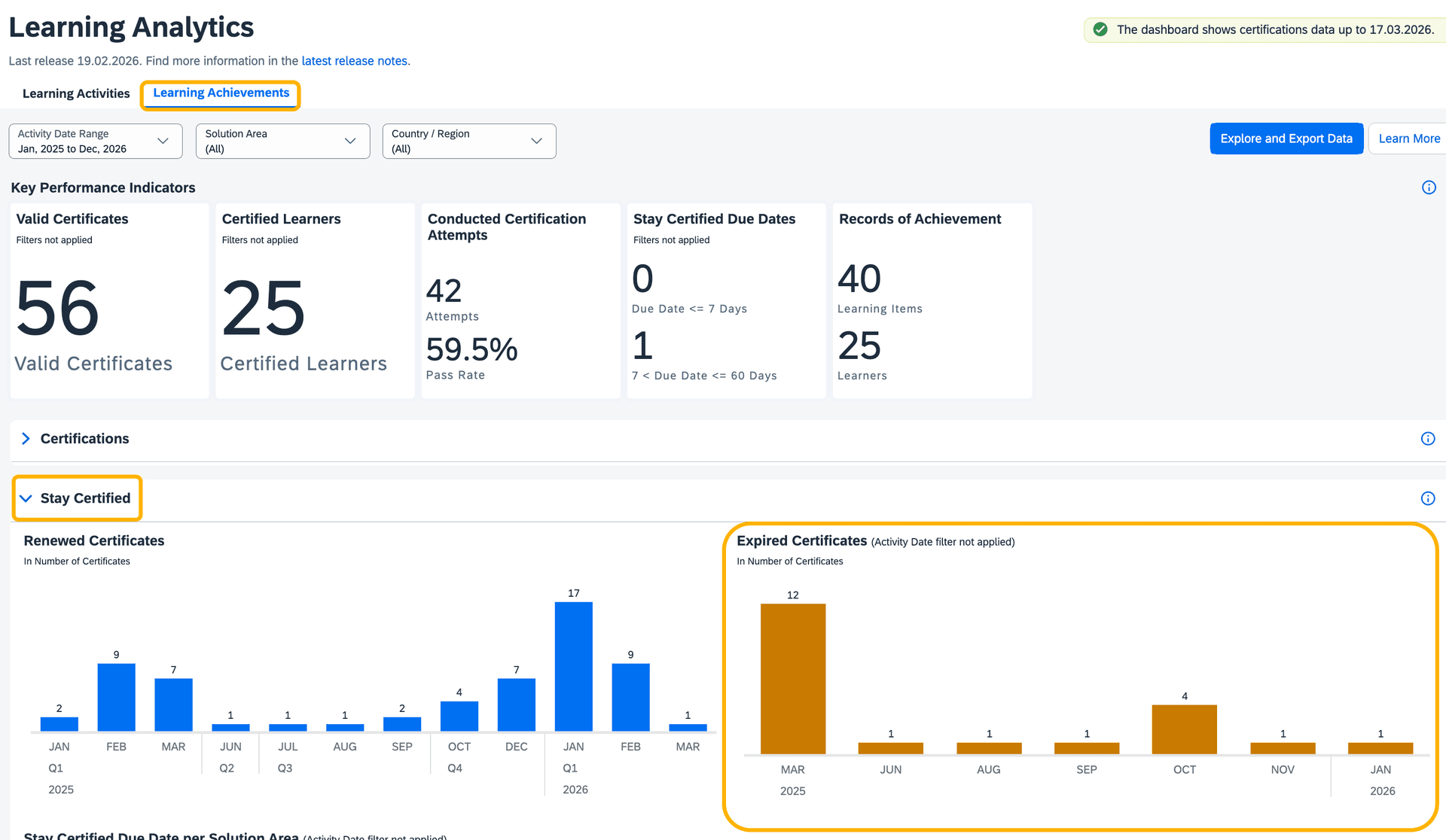
1.)To get an overview of the overall number of expired certificated per month:
- Navigate to the Learning Achievements page of the SAP Learning Hub analytics dashboard.
- Expand the Stay Certified section.
- Explore the Expired Certificates chart as shown below:
2.) To get the list of learners with expired certificates:
- Navigate to the Explore and Export Data section of the SAP Learning Hub analytics dashboard.
- Select the Certifications view and keep the default filter criteria.
- Set the Activity Date Range filter from “Start”.
- Set the Certification Status filter to “Expired” as shown below:
